Managing Customers In Kixxl
 Ensure your login and the Kixxl Installation to the Shopify store.
- Navigate to the Kixxl on the right side menu bar and select Customers.
- The Customer tab allows you to see the primary details of all customers, i.e, name, email, location and order history.

The customer tab includes a Search bar, where you can search for any customer by name and email.

By default, the Customers tab displays 10 customers per page. You can adjust this by clicking the ’10 per page’ button and selecting to view 30 or 50 customers per page.
Click on any customer tab to view their details. The tab allows you to view:
- Total Order Places: how many orders were placed by an individual customer.
- Total Order Amount: The Total amount spent on all orders by an individual customer.
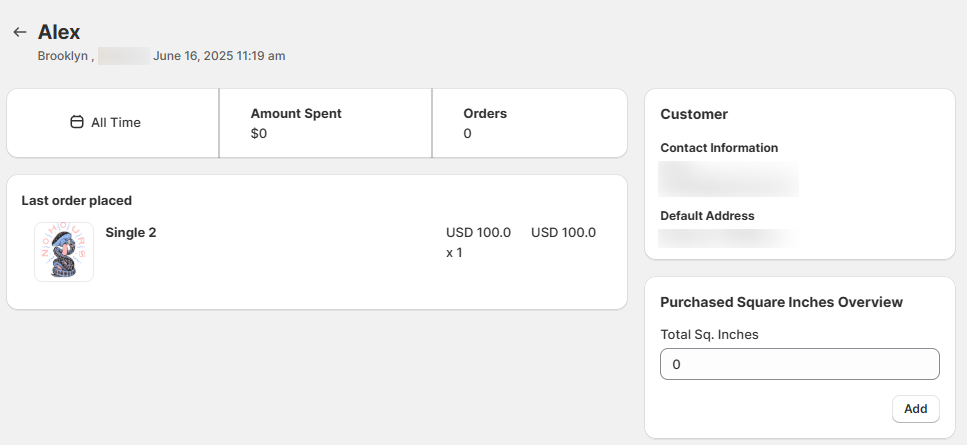
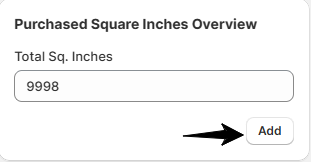
Purchase Square Inches overview: It shows you a summary of how many square inches of print area a customer has purchased over time.
In addition to this, if you want to purchase more square inches, you can add the number of inches and click “Add”.