How to Configure Allowed File Types for Uploads?
Updated
What are "Allowed File Types"?
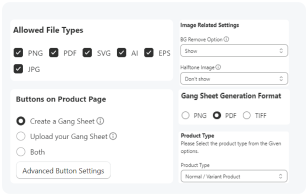
In Kixxl, the Allowed File Types are the formats of design/image that customers can upload into the editor. By defining which files types are allowed to upload, Kixxl ensures smooth uploading, editing, and exporting of designs without compatibility issues.
Which File Formats are Allowed for Upload?
- PNG: Supports transparency, best for logos & stickers.
- JPG / JPEG: Lightweight, best for photos.
- SVG: Vector-based, scalable without quality loss.
- PDF: Print-ready files, supports both vector & raster.
- AI / EPS: (optional, if enabled by admin): For advanced vector artwork.
- TIFF: Best for high-resolution, color-accurate large format printing.
Benefits of Allowed File Formats
- Smooth Uploads: Customers can easily upload designs in common formats (PNG, JPG, SVG, etc.) without errors.
- Flexibility in Printing: Multiple output formats ensure compatibility with different printers and RIP software.
- High-Quality Results: Supports formats that maintain transparency, scalability, and resolution for professional printing.
- Time-Saving: Eliminates the need for external file conversions before uploading or exporting.
How to Configure Allowed File Types for Uploads in Kixxl?
- Log in to your Kixxl Admin Dashboard in Shopify and select Products.
- In the Products tab, you’ll see already configured products.
- Select the product for which you want to configure the allowed file types.
- Navigate to the “Allowed File Types” section and tick the formats you want to allow uploads.
- Click “update” to save the changes.
Go to the Kixxl Editor and upload images in the allowed formats to confirm they are uploading correctly.”
ON THIS PAGE