Rush Order Per Order Setting
Rush Order Per Order
The Rush Order Per Order setting allows you to offer customers an optional rush production service for an additional fee. The feature is available for all Kixxl product types, including:
- Normal/Variant Products
- Rolling Canvas
- Single Sticker
- Sticker Sheet
- Upload by Size
When a customer enables Rush Order in the Kixxl editor, the Rush Order product is automatically added to their Shopify cart along with the customized product.
How to Set Up Rush Order Per Order?
1. Create a Rush Order product in Shopify
In your Shopify Admin, create a new product for your rush production service.
You can name the product something like:
- Rush Order
- Rush Production
Set the product price according to the rush fee you want to charge.
2. Make the product available
Make sure the Rush Order product is:
- Active
- Available on your Online Store sales channel
This allows Kixxl to add the product to the customer’s cart when they select the Rush Order option.
3. Open the product settings in Kixxl
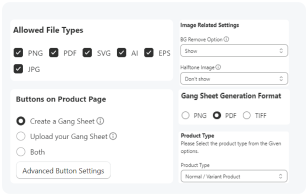
In the Kixxl app, open the settings for the product where you want to offer the Rush Order option.
4. Enable Rush Order
Enable the Rush Order option in the product settings.
5. Select the Rush Order product
Select the Shopify product you created for the rush service.
For example, if you created a Shopify product named Rush Production, select that product in the Kixxl Rush Order settings.
Save your changes.
6. Repeat for other products
If you want to offer Rush Order for other Kixxl products, repeat the same steps for each product.
You can enable the feature independently for any supported Kixxl product.
How Does Rush Order Work for Customers?
Once Rush Order is enabled, customers will see the Rush Order option in the Kixxl editor.
If the customer selects Rush Order:
The Rush Order product is automatically added to the Shopify cart along with the customized product.
If the customer does not select Rush Order:
Only the regular customized product is added to the cart.
How Can You Manage the Rush Order Product?
You can manage the Rush Order product directly from your Shopify Admin.
You can update:
- Product name
- Price
- Availability
- Other Shopify product settings
For example, if you increase your rush production fee from $10 to $15, you can update the price of the Rush Order product in Shopify without changing the Kixxl product configuration.
Important
Make sure the Rush Order product:
- Remains active
- Is available on the Online Store sales channel
- Remains selected in the relevant Kixxl product settings
If the selected Rush Order product is deactivated, unavailable, or removed from the Kixxl configuration, the Rush Order feature may not work correctly.