What is the “Semi-transparent Pixel Detection” Feature?
This guide is designed to help you understand Kixxl’s new Semi-Transparent Pixel Detection feature. It explains what semi-transparent pixels are, why they can create problems in DTF printing, and how Kixxl automatically detects and cleans them for better print quality. You’ll also learn how to turn this feature on for your Kixxl products.
What are Semi-transparent Pixels?
A picture is made of tiny dots called pixels. Some pixels are fully solid (100% visible), some are fully transparent (invisible) and some are semi-transparent (partly visible, partly transparent).
Semi-transparent pixels usually don’t matter until you try to print the image. Printers can’t always understand how to properly handle very light or semi-transparent pixels. This can lead to printing issues, especially in DTF printing.
Why semi-transparent pixels cause issues in DTF printing?
DTF printers print White ink first (it is used as a base so colors look bright on fabric). For each pixel, the printer must decide whether to print white ink or don’t print white ink. Semi-transparent pixels sit in between, so the printer gets confused which eventually leads to printing issues such as:
- rough or jagged edges
- unwanted white outlines (halos)
- patchy or faded areas
- the printed design looking different from the preview.
That’s why DTF works best with fully solid or fully transparent pixels, not semi-transparent ones. To solve this, Kixxl’s gang sheet builder introduces a feature called Semi-Transparent Pixel Detection.
"Semi-transparent Pixel Detection" in Kixxl
This feature allows Kixxl builder to analyze your uploaded images and shows a warning if it finds pixels that fall below the transparency threshold set by the admin.
Every pixel has a transparency value between 0% to 100%, and this feature flags any pixel that falls inside the range you select. You can control this by setting a minimum and maximum detection range.
For example, If you set:
- Minimum pixel detection%: 20
- Maximum pixel detection%: 80
If the image’s transparency level falls under the decided threshold (between 20% to 80%), it means the image contains semi-transparent pixels, which could affect printing quality.
Likewise, if the transparency level falls below 20% or above 80%, the image is considered safe means no semi-transparent pixels that could cause printing issues.
Transparency Cleanup Tool
You can clean those semi-transparent pixels via the Transparency cleanup tool inside Kixxl builder. This tool allows you to fix semi-transparent pixels in the uploaded image by adjusting the pixel removing slider value.
The slider is set to 50% by default. This means that:
Any pixels with less than 50% opacity will be removed.
Pixels with opacity between 50% upto 80% will be converted to 100% opacity (fully opaque).
You can adjust the slider to control which parts of the artwork you want to keep and which areas you want to remove.
In simple words: the semi-transparent pixel detection feature finds semi-transparent pixels in an image, and the transparency cleanup tool fixes them by making the image fully solid.
How to Enable Semi-transparent pixel detection feature in Kixxl?
To enable this settings:
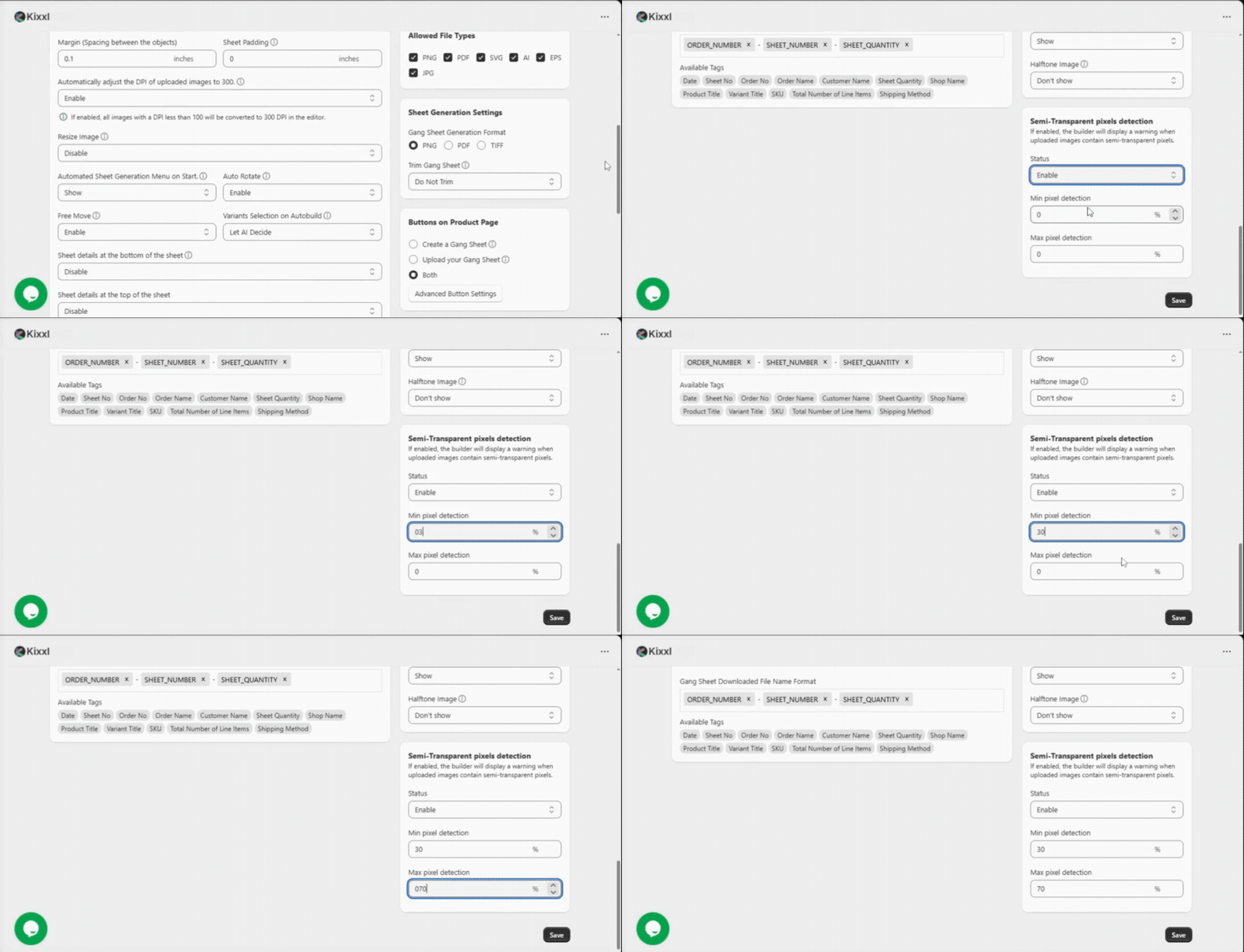
- Go to Kixxl → Product.
- Select the product you want to enable this feature on.
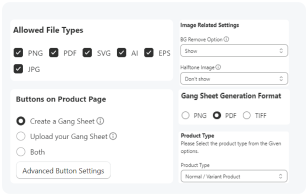
- Under Product Configuration Settings, select the product type i.e; Normal/Variant or Rolling Canvas.
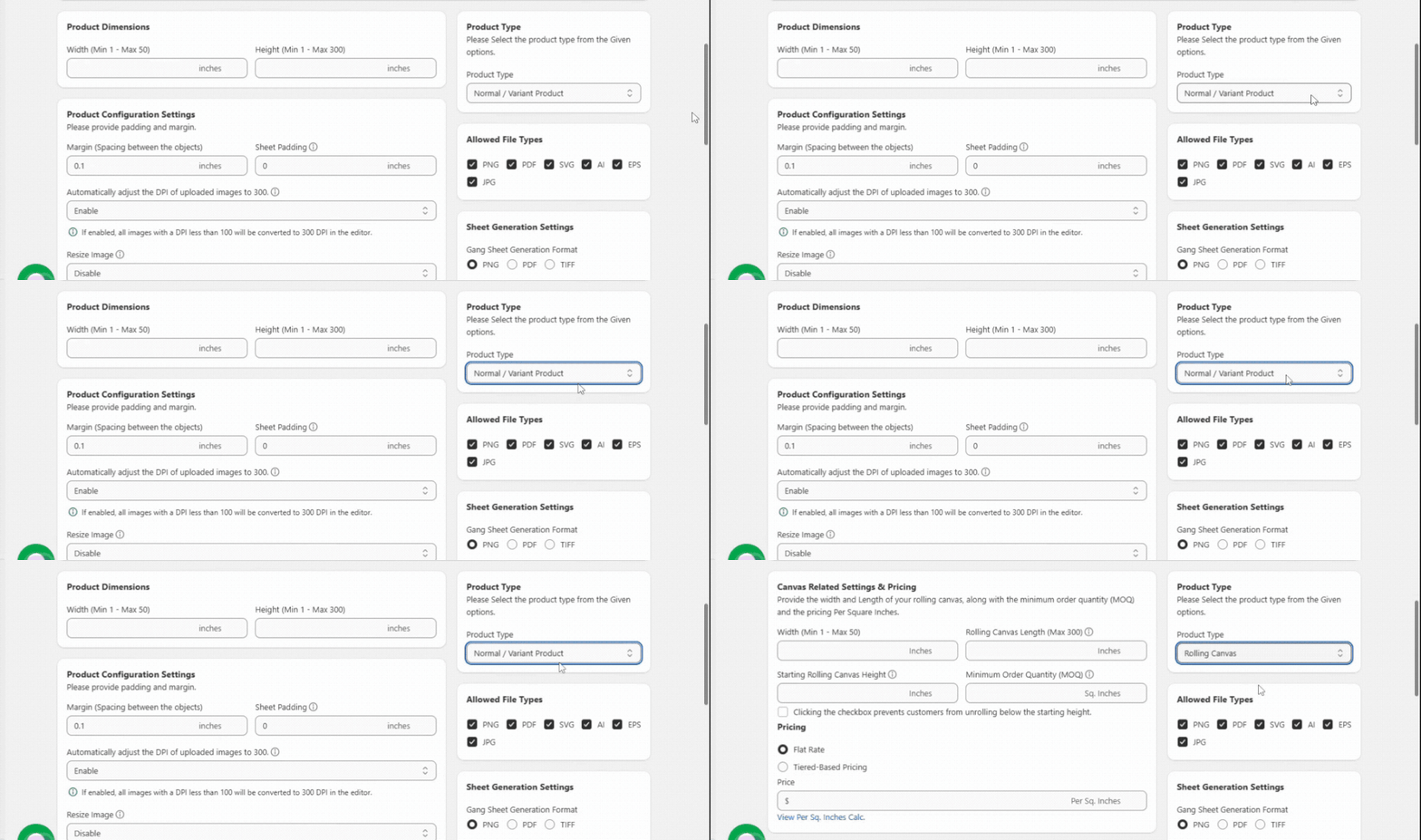
- Under semi-transparent pixel detection, set the status accordingly: Enable/Disable
- Set minimum and maximum pixel detection percentage. (This alpha value ranges from 0% to 100% opacity.)
- If you’re unsure what to set, keep it at 20%–80%, which is the default recommended range for most printers.