Instead of paying for a sheet order separately every time, Kixxl’s Prepaid Product allows customers to purchase a certain amount of sheet space in advance. For example 2,000 square inches for $100.
Once the customer successfully purchases a prepaid product, the purchased square inches are added to their Kixxl account balance as credits.
When the customer creates a sheet in the Kixxl Editor and places an order using their prepaid balance, the required square inches are automatically deducted from their available balance.
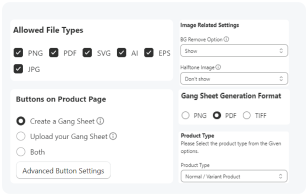
This Prepaid product setting is only for Rolling Canvas and Normal/Variant Products.
Example:
A customer purchases:
2,000 sq. inches for $100
They can then use those 2,000 sq. inches for their Kixxl sheet orders.
If they use 500 sq. inches for one order, their remaining balance will be:
2,000 – 500 = 1,500 sq. inches
Remember:
Customers must purchase the prepaid product before they can use prepaid credits.
The prepaid balance is linked to the email address used to purchase the prepaid product.
Customers must sign in to Kixxl using the same email address to access their balance.
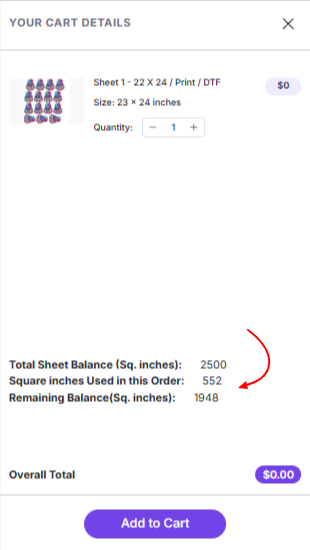
The available square inches are automatically deducted when the customer places an order using Use Sheet Balance.
If the total value of the sheets you create is more than your available prepaid credits, your credits will not be enough to cover the full order. In this case,Kixxl will show you the actual price of the remaining order amount. You will need to pay this remaining amount at checkout to complete your order.
Store owners can create different prepaid products with different prices and square-inch amounts, such as 1,000 sq. inches for $50 or 2,000 sq. inches for $100.
How to Set Up a Prepaid Product (For Admins)
The store owner must first create the prepaid product in Shopify and then configure it in Kixxl.
Step 1: Create the Product in Shopify
Go to your Shopify Admin.
Open Products.
Click Add product.
Add the product details, such as: (Product title, Description, Price, Category, Product media, Any other required product information)
Set the price according to the amount of sheet space you want to sell.
Click Save.
Your prepaid product is now created in Shopify.
Step 2: Configure the Product in Kixxl
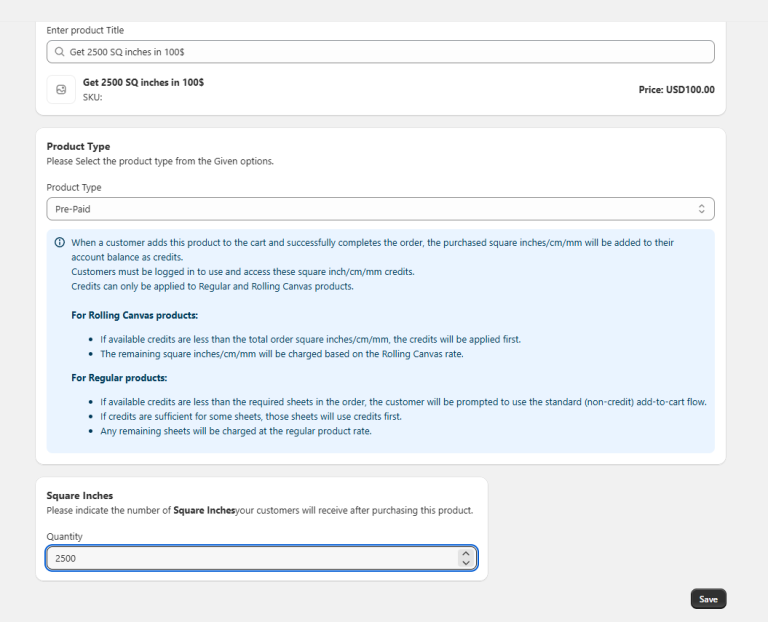
After creating the product in Shopify, configure it as a prepaid product in Kixxl
Go to your Kixxl Admin Panel.
Open Products.
Click Configure Products.
Find and select the Shopify product you created for prepaid credits.
Under the Configure Product settings:
Select Product Type: Prepaid.
Enter the number of square inches the customer will receive after purchasing the product.
Click Save.
The product is now configured as a prepaid product in Kixxl. It will be available on your Shopify store for customers to purchase.
How Customers Can Purchase Prepaid Product?
Once the prepaid product is set up, customers can purchase it directly from your Shopify store.
Step 1: Add the Prepaid Product to the Cart
The customer should:
Go to the Shopify store.
Open the Product catalog and Add Prepaid product named as (Get 2500 sq.inches in $100)
Click Add to cart and proceed to Checkout.
Enter their contact and payment information.
Complete the order.
Once the order is successfully completed, the purchased square inches are added to the customer’s Kixxl account balance as credits.
The customer will also receive an order confirmation email.
Step 2: Customer Sign-In to Kixxl Editor
After purchasing the prepaid product, the customer can use their credits in the Kixxl Editor.
Important: The customer must sign in to Kixxl editor using the same email address they used when purchasing the prepaid product. This is important because the prepaid square-inch balance is associated with the customer’s email address.
Step 3: Create a Sheet Using Prepaid Credits
After signing in to Kixxl:
Open the Kixxl Editor.
Add your designs to the sheet.
Adjust your designs as needed.
Continue until your sheet is ready to order.
Before adding the sheet to your cart:
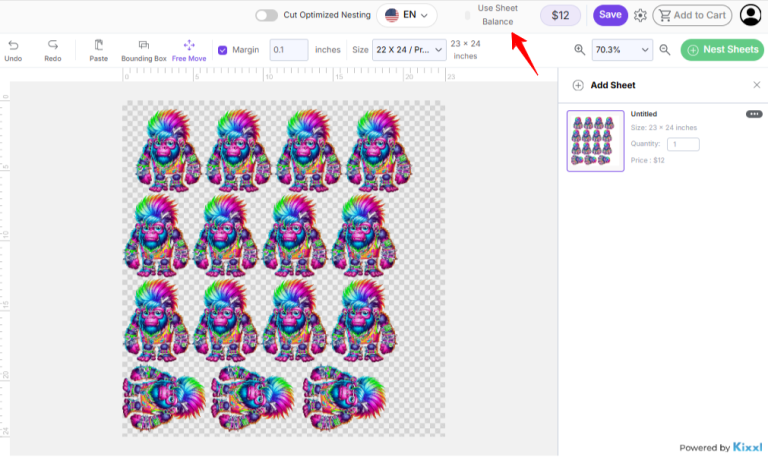
Go to the top-right section of the Kixxl Editor.
Enable the Use Sheet Balance option and click Proceed.
Kixxl will use the customer’s available prepaid balance for the sheet order.
The required square inches will be deducted from the customer’s available balance.
Click Add to Cart and proceed to checkout.
Complete the order.
The required square inches will be deducted from the customer’s prepaid balance.