Product Type: Image Upload By Size
What is Image Upload By Size?
Upload by Size is a product type in Kixxl that allows customers to create a gang sheet without selecting a fixed product size or variant.
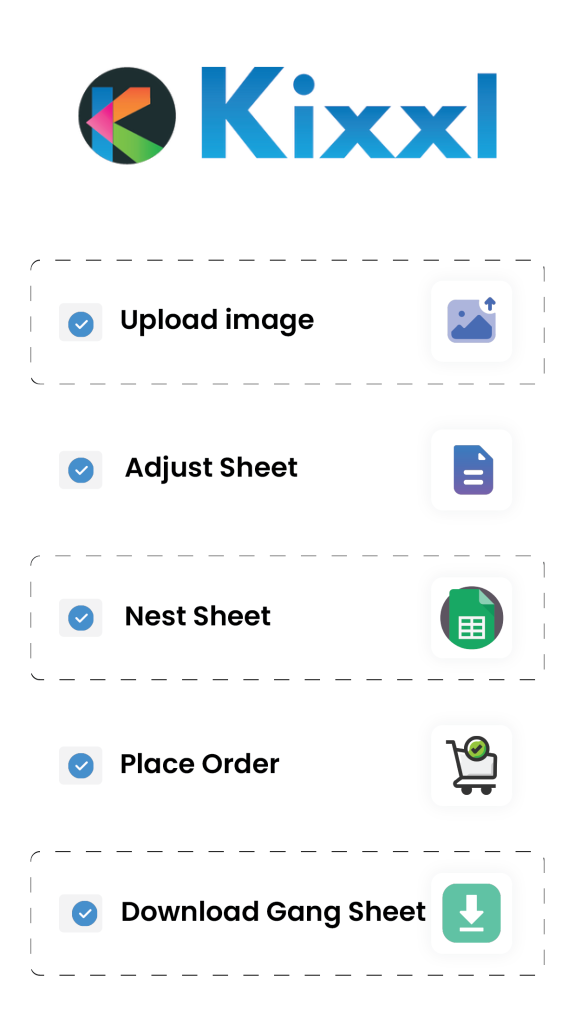
Customers simply upload their image, and the Kixxl builder automatically creates the gang sheet and calculates the price based on the image’s size (specifically in square inches).
How this Product type helps?
This product type is ideal when you want customers to decide how large their print should be and pay only for the space they use, rather than choosing from preset sizes or variants.
How to Configure Upload By Size inside Kixxl? (Admin side)
1. Access the Product
Go to Kixxl → select Products → Configure Product.
2. Search & Select the Product
Search and select a product you want to configure.
3. Choose Product Type
Select the product type from the given options i.e “Upload by Size”.
4. Adjust the Product Type Settings:
4.1. Specify Maximum Width & Height in inches.
4.2. Select the Pricing type: Flat rate or Per Image Tier Pricing.
Incase of Flat Rate: Enter the Price (per square inch)
Incase of Per Image Tier Pricing: Enter minimum and maximum square inches and price.
4.3. choose to Enable/disable Quantity Based Discount.
(This feature allows admin to offer discounts to the customers according to the quantity they’ve ordered for Image Upload by Size products.
For example, if a customer orders a specific number of the same design, they automatically receive the discount percentage you’ve configured for that quantity range)
4.3. Choose to Enable/ Disable the “Minimum Charge Value” setting.
This setting means that a customer must achieve a minimum order value (or minimum purchase amount set by the shop admin) before they can add items to their cart or proceed with the order. Until that minimum amount is met, “Add to cart” button will remain disabled.
5. Adjust Pre-defined Size Settings:
This setting, if enabled, controls how the uploaded image is adjusted and resized for printing.
Kixxl offers three pre-defined sizes:
- Longer Side (If the size is set to “longer side,” the image will automatically adjust based on whichever dimension, width or height, is longer.)
- Width (If the size is set to “Width,” the image will automatically adjust based on Width)
- Height (If the size is set to “Height” the image will automatically adjust based on Height).
6. Product Configuration Settings
- Mention the value of Margin (spacing between the objects or designs)
- Mention the value of Sheet Padding (It defines the extra space around the design, keeping it away from the edges and providing a safe buffer for cutting or trimming.)
- Choose the Gallery Visibility: Show or Don’t Show (this setting, if enabled,offers your customers the option to remove the background from their uploaded images.)
- Show mockup: Disable or Enable (Turn mockup previews on or off for customer visualization.)
- Pre-Cut Price Per Item: Enabling setting allows the shop admin to charge customers for the cost of cutting a single design or item individually.
(When it applies: By default, cutting individual designs from a sheet is not a standard part of most shop workflows. However, if a shop owner invests extra time and effort to cut out a specific design or item separately for a customer on his demand, this setting enables them to recover that additional cost by charging a per-item fee). - Artwork Processing Fee: Enabling this setting allows the shop admin to charge customers for any additional artwork-related work performed on the customer’s submitted design before printing.
(When it applies: This fee applies when the admin performs extra pre-production work on a customer’s design, such as: - Lamination preparation
- Color correction or adjustments)
- Rush Order Price: The Rush Order Price is a surcharge that the shop admin can apply when a customer requests their order to be fulfilled before the standard committed delivery timeline. Shop admin can Enable/Disbable this setting.
- Automatically adjust the DPI of uploaded images to 300 for better quality. You can Enable or Disable this setting.
- Sheet Details at the Bottom/Top of the Sheet: this setting lets you add important information to the top or bottom of the sheet, helping the admin identify the sheets after printing.
- Select the Gang Sheet Downloaded File Name Format from the given tags.
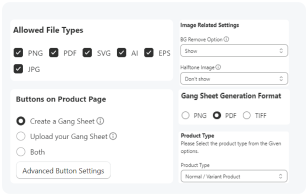
7. Select the Allowed File Type Formats
8. Select the Gang sheet generation format from the given options
9. DPI Warning Indicators
This setting helps you set the value of visual alerts that help you identify low-resolution images that may cause poor print quality. You can set the value of GOOD, FINE and BAD DPI accordingly.
10. Button on Product Page Settings
10.1. Button Text: the text you will enter here will appear as button text on the product page.
10.2. Button Color: the color you will select will appear as the Button color on the product page.
10.3 Under Button Variation: Selecting Upload Button option will show a button on the product page that opens a popup. while the Upload Field option displays a direct upload area for drag-and-drop or instant uploads.
11. Weight
Enter the weight in grams as this setting helps calculate shipping accurately.
12. Image Related Settings
- Background Remove Option: you can select Show or Don’t Show for this setting. If this value is set to “Show”, your customers will have the option to remove the background from their uploaded images.
- Halftone Image: Halftone applies a dotted shading effect to your image, simulating gradients using small dots. It’s commonly used for stylized or screen-print-friendly design. You can select Show or Don’t Show for this setting.
13. Semi-transparent Pixel Detection Setting
You can select the status of this setting to Enable or Disable.
- If enabled, the builder will display a warning when uploaded images contain semi-transparent pixels. (however, you can enable or disable this warning popup). Also, you can enable or disable the setting either if you want to highlight semi-transparent images)
- You can select the range of semi-transparent pixels detection i.e; Minimum% and Maximum%
14. Library Image Tag Setting
You can select tags from available ones. If no tags are selected, all library images will be shown in the builder. If tags are selected, only images matching those tags will be displayed.