Using Kixxl Editor: Advanced Image Tools

The Kixxl Editor makes it easy to design, customize, and arrange your gang sheets before printing. This guide walks you through all the tools and features step by step so you can get the most out of the editor.

Advance Image Tools in Kixxl Editor

In Kixxl Editor, the advance Image tools such as Image Halftoning and Color Knockout are powerful tools to refine and optimize designs for printing. Both tools saves time, reduce costs, and give users greater control over how their artwork looks and prints, ensuring professional-quality results without the need for extra editing software.

Image Halftoning

Halftoning in Kixxl lets you prepare your designs for printing with smooth gradients and shading using tiny dots. Instead of printing solid colors everywhere, halftoning breaks down your image into patterns of dots that create the effect of depth, highlights, and shadows.

Why it’s useful in Kixxl:

  • Adds a creative or retro effect to designs.

  • Prepares designs for screen printing, DTF, or sublimation where halftones are required.

  • Helps control ink coverage and reduces complexity in multi-color prints.

  • You can fine-tune halftoning settings depending on how much detail or contrast you want.

Knockout Color Feature

This feature helps you remove a specific color from the design so it doesn’t print— leaving that area transparent (knocked out). This is useful especially when you’re printing designs that have overlapping elements or backgrounds. 

Why it’s useful in Kixxl:

  • Prevents printing unnecessary color blocks, saving ink and making prints sharper.

  • Removes unwanted backgrounds (like white or solid color) from uploaded images.

  • Helps isolate the main artwork for clean gang sheet printing.

To use this feature: 

  • Select the color knockout option. 

  • You can type a color code manually (the color you want to remove) or select the “color picker” tool. 
  • Place the color picker on the image to select the color you want to knock out. 

  • Decide the knockout percentage (how many % you want that color to get removed from the image). 

  • Click “Generate Halftone” and then “Save & Replace on Canvas”.  

  • Also, you can add this image to the image library. 


Image Background Removal using AI

In the Kixxl Editor, the Background Removal feature is used to automatically delete the background of an uploaded image or design, leaving only the main object or artwork visible. also, this feature ensures that only the actual design is printed on the gang sheet, without any extra elements or color patches.

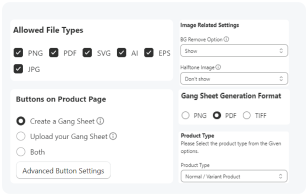
(However, this feature will appear in the editor only if it is enabled by the Shop Admin.)

To use this feature:

1. Select the image you want to remove the background from.

2. Choose the “Remove BG” option from the left side menu bar of the editor. now you’ll have your image with a removed background.

3. You can save this image as either Save as New or Replace Selected. Choosing Save as New will store the image in Kixxl’s image library as a new file, while selecting Replace Selected will directly replace the existing image on the canvas with the new one.

(you can adjust the settings i.e, height, width of the image after background removal as well.)

ON THIS PAGE