
Viewing Orders
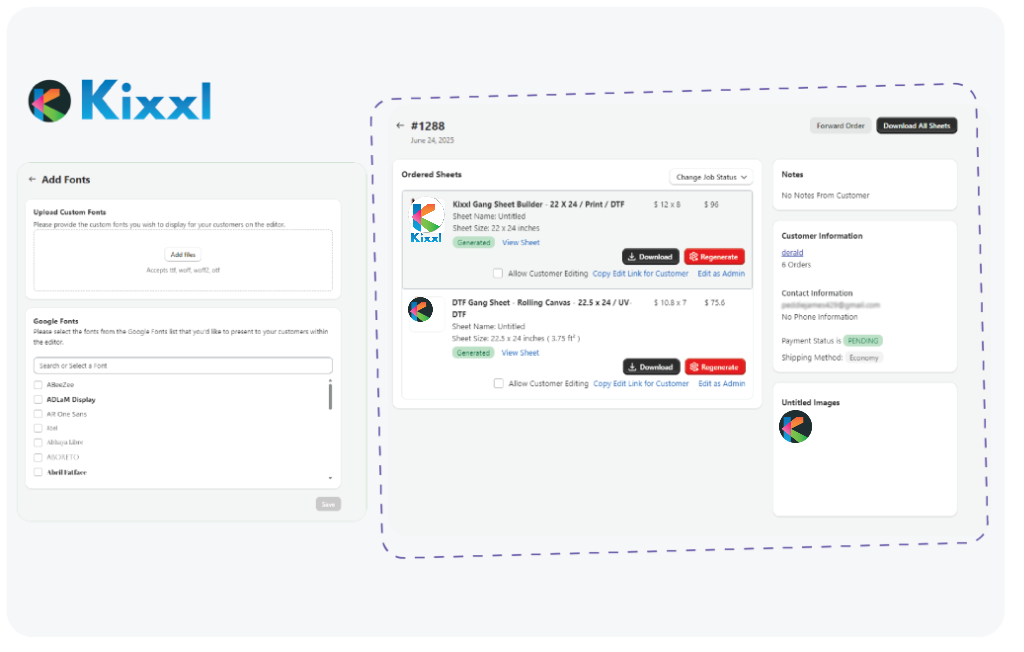
This guide walks through how to view, edit, and customize your Orders as Admin within Kixxl on Shopify.
By managing orders directly through Kixxl, you eliminate the need for back-and-forth file chasing or manual adjustments in design software. The system ensures all your customer uploads are organized, editable, and production-ready, helping you save time and reduce cost.
How to View a Order?
Ensure your login and the Kixxl Installation to the Shopify store.
1. Access the Order section
Go to Shopify Admin, Click Apps → Kixxl → Orders.
Here, you’ll see a list of all customer orders that included a Kixxl product (e.g., gang sheets, stickers, rolling canvas, etc).
2. Understand the Order Type

All includes all orders pulled from Shopify only.
The labels Regular, Sticker, and Rolling Canvas inside the Order tab are order type filters. They tell you what kind of product/order format the customer selected in Kixxl.
3. Search & View Order
The customer tab has a Search & Filter button, which helps you search for orders via order number and customer name.


By default, the Order tab displays 10 orders per page. You can adjust this by clicking the “10 per page” button and selecting to view 30 or 50 orders per page.


👉 Troubleshooting
I Don’t See Any Orders on the list?
Ensure Kixxl is properly installed and connected to your store.
Confirm that at least one customer has placed an order using Kixxl products.
Searching by order number returns no result?
Double-check that you’re entering the full Shopify order number (including prefix).
Try searching by customer name instead.
Filters don’t show expected orders (e.g. “Sticker” missing).
Contact support if persistent discrepancies occur.
Some older orders may not be tagged correctly—check under “All” to find them.