Configuring & Managing Products in Kixxl
Ensure your login and the Kixxl Installation to the Shopify store.
Navigate to the Kixxl on the right side menu bar and select Products. (The Products tab from the dashboard allows you to view already configured items in your store.)

Click “Configure Product” on the top right of the page.
Search and select the Product you want to configure.

Ensure that the product is already added to your Shopify store.  How to Add a New Product in a Shopify Store
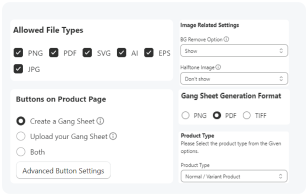
Assign a Product Type (e.g., Sticker sheet, Rolling canvas, Prepaid, image upload by size, normal/variant, etc).
This controls which builder tool opens for customers, i.e Gang Sheet Builder, Sticker Pro, etc.)