Kixxl: Installation Guide for Shopify

This article shows how to install and configure Kixxl on a Shopify store so you can start creating gang sheets, managing single prints, and fulfilling orders through Kixxl.

Pre-requisites:

  • Ensure you’re logged into your Shopify store. 
  • Products are already created (added) inside your Shopify store. 

1. Install Kixxl from Shopify App Store

  • Open your Shopify admin and go to Apps → Shopify App Store.

  • Search for Kixxl.

  • Click Add app (or Install app) on the Kixxl listing.

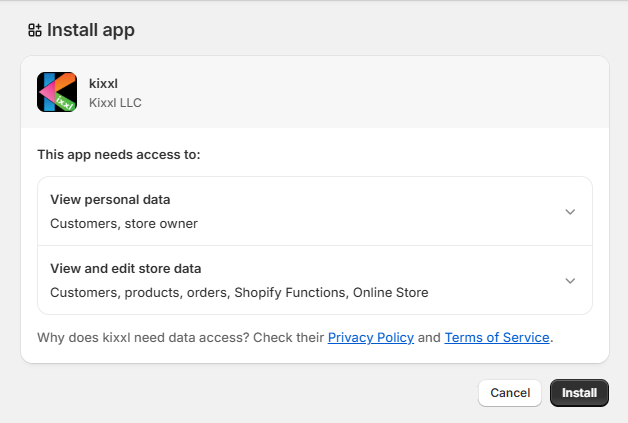
  • Review the permissions the app requests and click Install.

Tip: Here’s a direct Kixxl installation link, opening it while logged into your Shopify admin will take you straight to the app install flow.

👉 Kixxl Installation Link

2. Grant Permissions

Review requested permissions carefully. Kixxl may need access to view personal data such as customer and store owner data. 
 

3. Select & Confirm the Pricing Plan

Select the pricing plan accordingly and click buy. Choose the payment method.
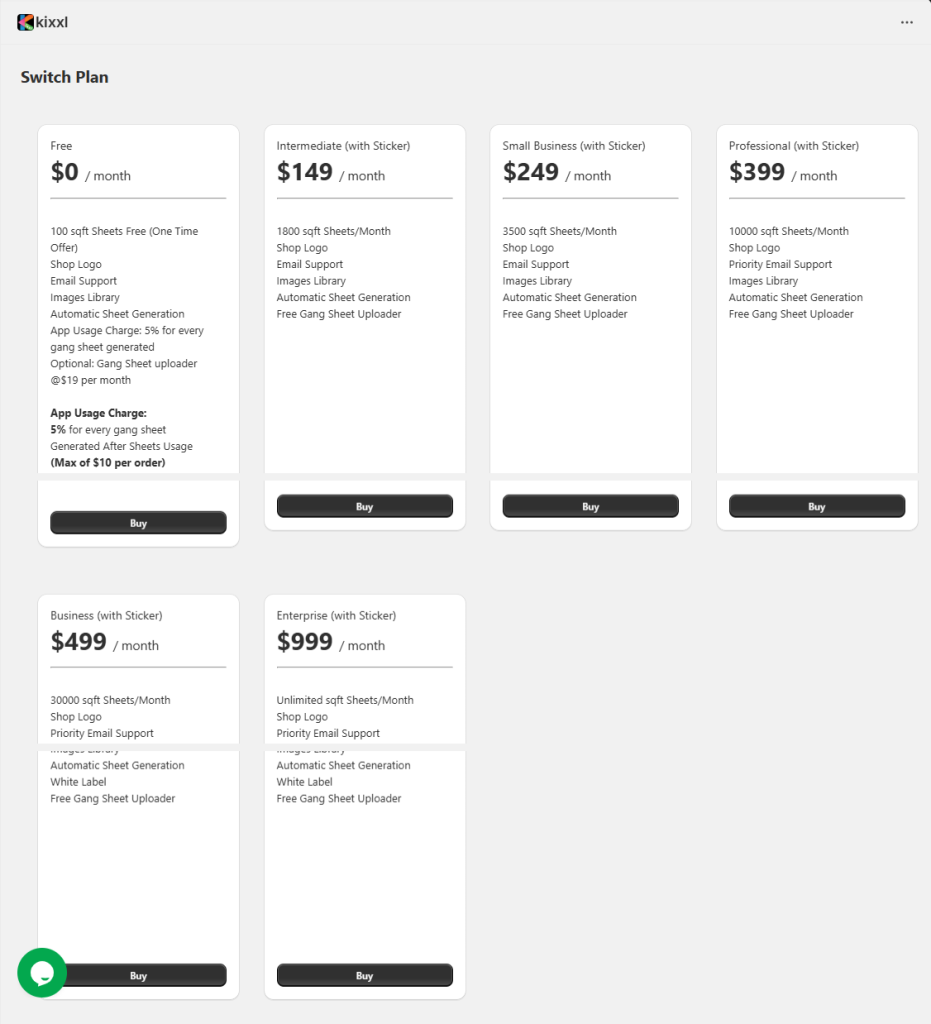
👉 Kixxl Pricing Plans


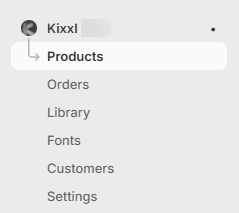
Once your payment is approved, you can see Kixxl on the left side bar. Click Onboarding under Kixxl to get started with your product configuration. 

👉
You can Skip Onboarding if you want. However, you can still set up the App and configure products by navigating directly to the Products section under Kixxl on the left side bar.)

4. Configure the Products

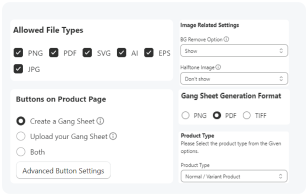
Product configuration in Kixxl refers to the process of setting up how each of your Shopify products will work inside the Kixxl builder. 

 👉 Here’s a complete step-by-step guide to configure and manage each of your products.

5. Add the Button

In order to allow customers to create gang sheets, you need to add a “Create a Gang sheet” button to your product page.

When you Click Add Button, you will be redirected to your Shopify product page. Drag the app block up or down to move it to the position you want. When ready, save your changes.

👉 How to Configure Buttons on a Product Page?

Congratulations - you're all set!

You’ve successfully installed Kixxl Gang Sheet Builder into your Shopify store and configured your products!

Now your customers can:

      • Upload designs directly from your store

      • Arrange multiple designs on a single gang sheet

      • Place custom print orders with ease.
    👉 Troubleshooting

      • App won’t install? → Make sure your Shopify plan allows third-party apps.

      • Permission denied? → Clear cache and retry.

      ON THIS PAGE