How Original File Link Is Included in Upload by Size Line Items?
Kixxl now allows the original uploaded file link by customers to be included in Upload by Size line items. Previously, when customers uploaded a PDF design using the Upload by Size product type, Kixxl automatically converted the PDF into a PNG image before adding it to the print sheet. As a result, only the converted […]
How Kixxl Scans for Image Quality & Artwork Issues in a Customer Order?
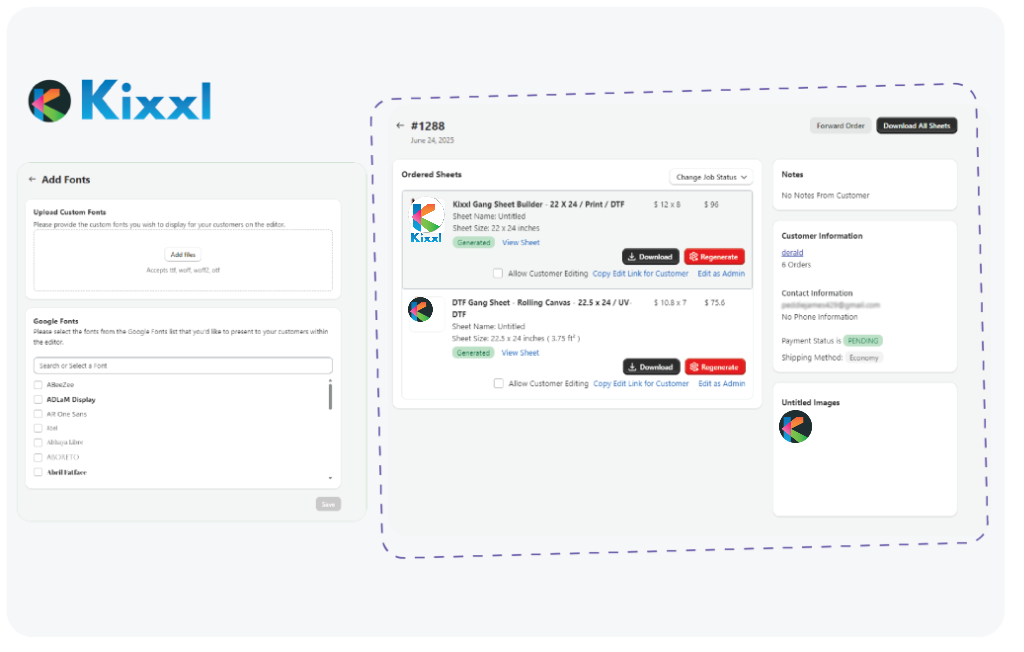
Whenever a customer uploads designs or images to create a gang sheet, Kixxl automatically scans the artwork for potential quality and print issues.If any issues are detected, they are displayed on the Order Details page for the corresponding order line item. Examples include: Image Has Semi-Transparent Pixels: Yes/No Low DPI Images Detected: Yes/No Overlapping Images […]
What is “Quantity-Based Discounts” feature in Image Upload by size product?
The Quantity-Based Discount feature allows admin to offer discounts to the customers according to the quantity they’ve ordered for Image Upload by Size products. For example, if a customer orders a specific number of the same design, they automatically receive the discount percentage you’ve configured for that quantity range. Note: Since Kixxl calculates the price […]
“Edit Image” & “Edit sheet” option for Sticker & Sticker Sheet Products
What is the “Edit Image” option? Kixxl now includes an Edit Image feature for Sticker and Sticker Sheet products. This feature allows customers to edit and enhance their uploaded images directly within the Kixxl Builder before creating their final stickers/sticker sheets. How to enable and use the “edit image” option? Visit your Kixxl store and […]
Product Type: Image Upload By Size
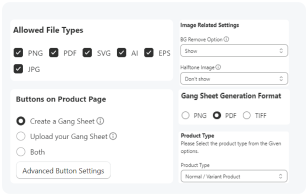
What is Image Upload By Size? Upload by Size is a product type in Kixxl that allows customers to create a gang sheet without selecting a fixed product size or variant. Customers simply upload their image, and the Kixxl builder automatically creates the gang sheet and calculates the price based on the image’s size (specifically […]
How to Add Credits For “Free Plan” in WordPress?
If you opt for Kixxl’s FREE PLAN, here’s how you can add credits to your Kixxl account: 2. Add the amount of credits you want to purchase (on the left side of the tab) 3. Select the payment method: Pay with Stripe Link OR Bank/Card. 4. Enter your required details and continue with payment. […]
How to Enable and Use Sticker Maker Pro: A Complete Guide
This guide will show you how to enable and use Sticker Maker Pro within Kixxl, step by step. You’ll learn how to create precise sticker designs, generate contour cut lines, and streamline your sticker production process for better efficiency and accuracy. We’ve organized this guide into the following sections: What is Sticker Maker Pro How […]
How to Enable and Use Singles Builder In Kixxl: A Complete Guide
This detailed guide explains how to enable and use the Singles Builder in Kixxl. You’ll learn how it works, how to fulfill single-item orders efficiently. We recommend you to follow the steps to streamline your workflow and reduce fulfilment errors. We’ve organized this guide into the following sections: What is Singles Builder How Singles Builder […]
What is the “Semi-transparent Pixel Detection” Feature?
This guide is designed to help you understand Kixxl’s new Semi-Transparent Pixel Detection feature. It explains what semi-transparent pixels are, why they can create problems in DTF printing, and how Kixxl automatically detects and cleans them for better print quality. You’ll also learn how to turn this feature on for your Kixxl products. What are […]
Kixxl: Installation Guide for WordPress
This guide walks you through installing and setting up Kixxl on your WordPress store. Follow these simple steps to get connected and start using Kixxl smoothly. We’ve organized this guide into the following sections: Downloading WordPress Plugin for Kixxl Choosing the Pricing Plan Creating Products in your WooCommerce Store Configuring products inside Kixxl in WooCommerce […]